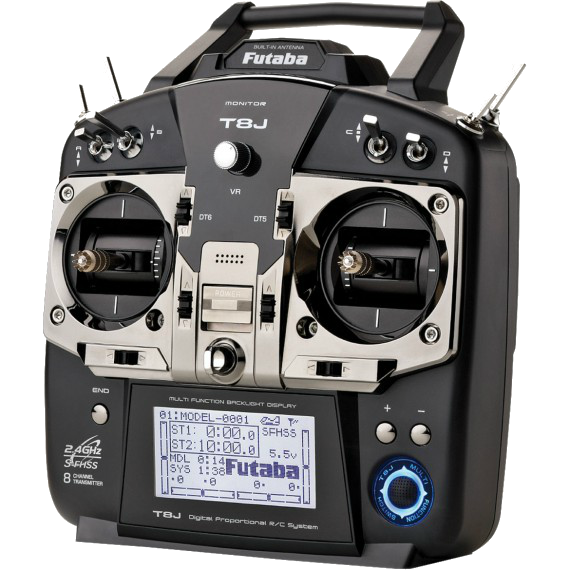
Futaba T8J Setup:
*** Please ensure that your computer is fully up to date with the latest drivers including controller drivers.
We’ll be using a USB dongle to connect to the computer. Click here for the cable.
*** Keep in mind that there are many different USB dongles available on the market for connecting RC controllers to the computer. Please be sure that you have a USB dongle that is compatible for your specific controller.
We have found that the USB Dongle that has a switch on the side works the best and putting this switch in the #2 position works best.
- First power on the controller.
- Hold down the plus button for 2-3 seconds until the menu shows up.
- Next use the “Jog Key” ( see manual for details, this is the small round rubber moveable button in the lower right of the controller.) and move up until you get to “AUX-CHAN” then click the “Jog Key” in.
- You will see CH5-CH8 listed vertically. While on CH5 hit the + or - button until it changes to SwF. This will now allow the “F” toggle switch to be activated on the controller.
- Next scroll down with the “Jog Key” to CH6 and using the +/- button, change this to SwH. This will activate the “H” toggle switch to be used.
- Now hit the End button to go back to the main screen.
- You can now plug in your controller and launch the game.
- Now go into “settings”, “CONTROLLER SETUP”> "AUTO CALIBRATION", Go through the on screen prompts to finish the setup and you’re free to fly..
** If you are having trouble setting up your controller, you can also refer to the User Manual. Click Here.