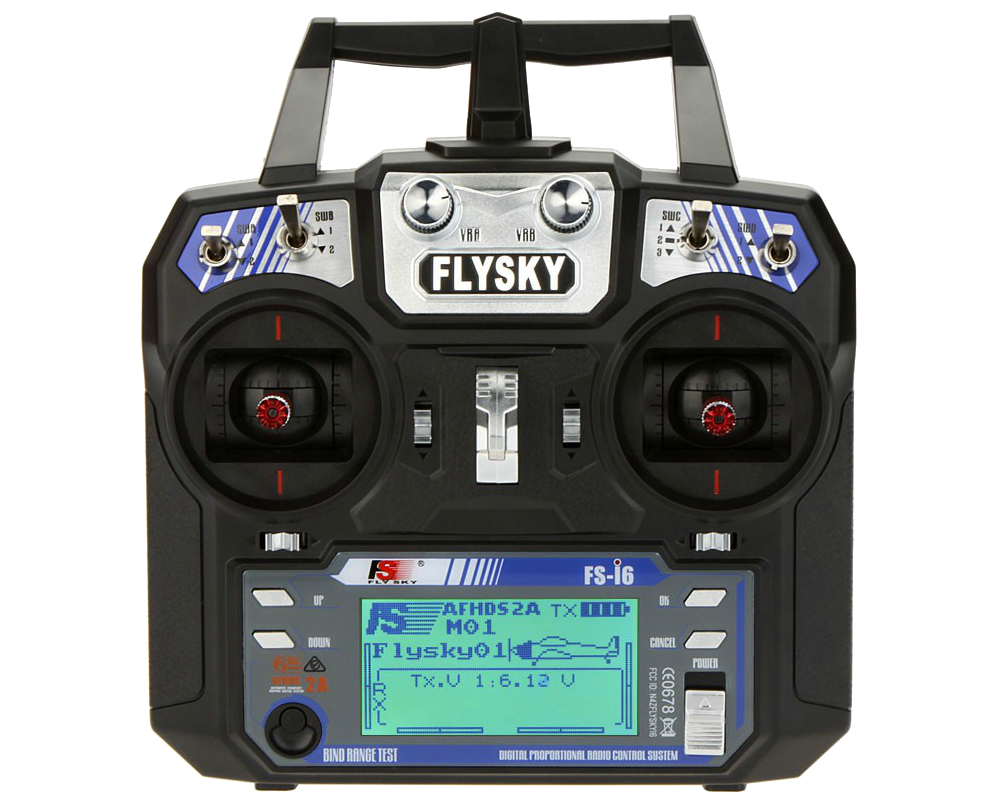
FlySky/ Turnigy -i6 AFHDS 6CH Transmitter via USB Dongle Setup:
**Note: the FlySky and Turnigy both operate the same way.
*** Please ensure that your computer is fully up to date with the latest drivers including controller drivers.
We’ll be using a USB dongle to connect to the computer. Here is a link to some.
**Keep in mind that there are many different USB dongles available on the market for connecting RC controllers to the computer. We do not guarantee the cable to work. however we have found cables like this to work in the past. Please be sure that you have a USB dongle that is compatible for your specific controller.
We have found that the USB Dongle that has a switch on the side works the best and putting this switch in the #2 position works best.
*** Some dongles or cables might require you to skip the reset and restart switch step to work correctly. Use R and Alt-R instead.
Setup Steps:
- Before connecting to your computer, power on the controller and go through controller setup before in game calibration.
- When powered on, hold down "ok" to enter "MENU" and select "System setup"
- Select "Model select" and pick an unused model, hold "cancel" to confirm and select.
- Select "Type select" and select "Airplane or glider", hold cancel to confirm and select.
- Select "RX Setup", turn AFHDS off and hit "ok" button to confirm.
- Select "Trainer mode" on the next page, set mode to "On", and switch to "SwB", flick SwB switch and see if "Not Engaged" changed to "Engaged". Keep it on "engaged"
- Select "Sticks mode" and change to Mode 2
- Hit "cancel" to return to the "MENU" then select "Functions setup"
- Select "Aux. channels" and set Channel 5 to Source SwA and set Channel 6 to Source SwD. hold "cancel" to confirm and select
Now you can connect the USB dongle to the trainer port on the back of the controller and plug into the computer. Please check your computers devices/hardware to confirm that it is being recognized by the computer.
Once confirmed you can launch the game and go to “settings”, “CONTROLLER SETUP”> "QUICK CALIBRATION", Go through the on screen prompts to finish the setup and you’re free to fly..